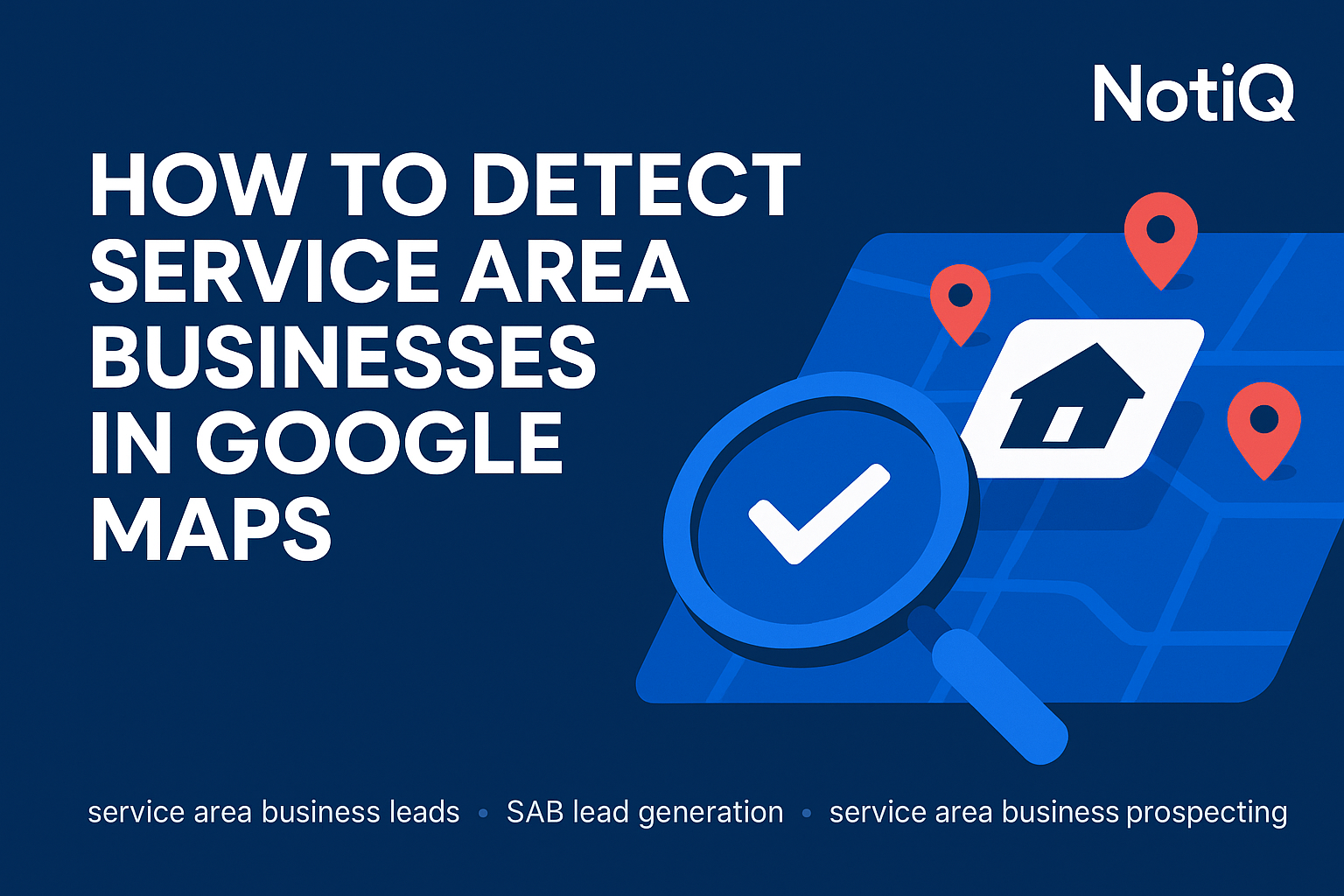
How to Detect Service Area Businesses on Google Maps and Turn Them Into High‑Quality Outreach Leads
Most home-service outreach campaigns fail for a simple, often overlooked reason: the lead lists are dirty. They mix brick-and-mortar storefronts—like showrooms or supply shops—with true Service Area Businesses (SABs) that actually travel to customers.
If you are selling lead generation, SEO, or operational software to plumbers, roofers, or locksmiths, a storefront listing is often a wasted credit. You need businesses with mobile teams. However, Google Maps is full of hidden-address listings that look identical to the untrained eye. Unless you know the specific signals, distinguishing a high-intent SAB from a generic listing is nearly impossible.
This guide provides a repeatable, expert-level workflow to detect and verify SABs specifically for outreach purposes. We will cover the clear indicators, how to validate them, and how to use structured SAB data to build scalable, high-performing lead pipelines.
Table of Contents
- Clear indicators that reveal a Service Area Business on Google Maps
- SAB vs storefront differences and impact on lead quality
- A repeatable workflow for SAB detection and verification
- Using SAB data for targeted outreach and automation
- Tools, resources, and real examples
- Case studies & future trends
- FAQ
Clear Indicators That Reveal a Service Area Business on Google Maps
Detecting a Service Area Business (SAB) requires looking beyond the basic business name. You must analyze specific visual and metadata signals across Google Maps, the Local Finder, and the Google Business Profile (GBP) knowledge panel.
Missing physical address line (primary SAB signal)
The most reliable indicator of an SAB is a hidden street address. According to Google’s policies, businesses that serve customers at their locations—rather than at a fixed shop—must hide their address from the public. This is common for home-based businesses or mobile fleets that do not receive walk-ins.
On Google Maps, a standard storefront displays a pin and a full address (e.g., "123 Main St, City, State"). In contrast, an SAB profile will often show no address line at all, or simply state a city and state without a street number. When sourcing hidden address business leads, this is your first filter.
However, caution is required. A missing address does not always guarantee a valid SAB. Occasionally, new or improperly configured profiles may lack address data due to verification issues. True service area business leads are defined by a deliberately hidden address combined with active service indicators, not just a blank field.
“Provides service to” label or service‑area radius
When an address is hidden, Google Maps typically replaces the location pin with a text label in the search results or knowledge panel that says "Provides service to [City Name]" or "Serves [Area] and nearby areas."
This distinction is critical for service coverage verification SAB workflows.
- City-based Areas: The profile lists specific municipalities (e.g., "Austin, Round Rock, Pflugerville").
- Radius-based Areas: Historically, businesses could set a radius (miles from a central point), though Google has shifted focus toward specific service areas.
In the user interface (UI), this label can be inconsistent. On mobile, it often appears prominently under the reviews; on desktop, it may be buried in the "About" section. Manually confirming this label ensures you aren't targeting a business that simply forgot to update its address.
Coverage map and service‑area polygons
Visually, SAB Google Maps listings are unique because they display a red outline (polygon) on the map representing their service territory, rather than a single location pin.
When you click on a suspected SAB, the map zoom level often shifts to encompass the entire service zone. If you see a specific shape covering a metro area rather than a teardrop pin, you have confirmed service-area detection.
This data is gold for outreach. It allows you to say, "I see you cover the entire North Dallas area," rather than a generic "I see you are in Dallas." This polygon data confirms the business is mobile and actively managing its territory.
Business categories typically associated with SABs
Certain Google Business Profile categories are strong proxies for SAB status. When building a list for home‑service cold outreach, prioritize categories that necessitate mobility:
- Plumbers
- Locksmiths
- Pest Control Services
- HVAC Contractors
- Mobile Mechanics
- Landscapers
While some of these are "hybrid" businesses (e.g., a pest control company that also sells chemicals from a shop), the vast majority operate purely as SABs. If the category matches a mobile trade and the address is hidden, the probability of it being a high-quality lead is near 100%.
Red flags and misidentifications
Not every listing without an address is a valid prospect. You will encounter inconsistent SAB indicators Google Maps results that should be scrubbed from your list:
- Spam Listings: Profiles with names like "Best Plumber Near Me" often hide addresses to evade suspension. These are low-quality leads.
- Virtual Offices: Some businesses use shared workspace addresses but hide them to look like SABs.
- Incomplete Profiles: A listing with no reviews, no photos, and no address is likely an abandoned or unverified profile, not an active business.
How SAB vs Storefront Differences Impact Lead Quality
Understanding the operational differences between SABs and storefronts is the key to improving your outreach ROI.
Why SABs convert better in home‑service outreach
Service Area Businesses operate on a distinct model: they go to the customer. This means their revenue is directly tied to lead volume and dispatch efficiency. Unlike a storefront that relies on foot traffic or brand visibility, an SAB relies entirely on digital visibility and phone calls.
Research into service area business leads suggests they have higher intent for marketing and operational services. They need more leads to keep their vans moving, and they need software to manage mobile invoicing and dispatching. When you target Google Business Profile leads that are verified SABs, you are pitching to business owners who feel the pain of a quiet phone much more acutely than a retail shop owner.
Lead‑qualification attributes unique to SABs
SABs offer rich data points for qualification that storefronts lack.
- Mobility: The existence of a service area implies a vehicle fleet.
- Coverage Zones: A business covering 15 cities is likely larger and more established than one covering a single zip code.
- Radius Size: Large polygons indicate high operational capacity.
Using service coverage verification SAB data allows you to score leads. A "tier 1" lead might be an HVAC company serving 3+ counties, while a "tier 3" lead serves only one town.
Problems with mixing storefronts into outreach lists
Mixing storefronts into your hidden address business leads list dilutes your message.
- Irrelevance: If you pitch "more booked appointments" to a plumbing supply store (storefront), they will ignore you. They want buyers, not homeowners.
- Wasted Tokens: Personalization tokens like
{{Service_Area}}break when applied to a storefront with a fixed address. - Reduced Reply Rates: Every irrelevant email signals to email service providers (ESPs) that you are spamming, hurting your deliverability.
A Repeatable Workflow for SAB Detection and Verification
To scale your outreach, you need a systematic way to identify these businesses. Here is a step-by-step workflow.
Step 1 — Initial SAB screening from Maps results
Start your search on Google Maps or the Local Finder. Scan the list of results for the primary clues:
- Is the address line missing or truncated to just "City, State"?
- Does the category match a mobile trade (e.g., Roofer)?
- Do you see the "Provides service to..." text in the snippet?
This initial pass is about how to identify a service area business on Google Maps quickly, filtering out obvious retail locations.
Step 2 — Confirm service area details inside GBP panels
Once you identify a candidate, click into the profile. Verify the "Service options" section. You are looking for "Online estimates" or "On-site services" rather than "In-store shopping."
Cross-reference this with Google’s official service area guidelines. Google strictly mandates that SABs should not display their business address to customers. If a profile follows this rule (hidden address + defined area), it is a compliant, active Google Business Profile SAB.
Step 3 — Validate coverage radius or city list
Look at the bottom of the "About" or "Overview" tab. SABs will list the specific cities or counties they serve.
- Action: Copy these locations.
- Use Case: This is your service coverage verification SAB step. If they list 20 cities, they are an aggressive marketer. If they list 1, they are likely a solopreneur.
Step 4 — Identify outliers, hybrids, or misconfigured profiles
Watch out for "Hybrid" businesses. These are businesses that serve customers at their address and deliver to customers. They will show an address but also a service area.
- Decision: Decide if hybrids fit your ICP (Ideal Customer Profile). If you sell "mobile dispatch software," a hybrid might still be a good fit. If you sell "rank in the map pack without an address," they are not.
- Filter out inconsistent SAB indicators Google Maps shows, such as profiles located in residential areas that are clearly just using their home address without hiding it (a violation of Google terms, but common).
Step 5 — Build a standardized SAB verification checklist
Create a simple binary checklist for your research team or VA:
- Hidden Address? (Yes/No)
- Service Area Polygon Visible? (Yes/No)
- Mobile Category? (Yes/No)
- Active Reviews? (Yes/No)
This standardizes service-area detection. For more on building these types of verification and personalization workflows, check out our guides on structuring outreach data.
Using SAB Data for Targeted Outreach and Automation
Once you have detected the SABs, the real value lies in using that data to personalize your outreach.
Enriching SAB data for personalization
Generic outreach says, "I can help your business."
SAB-enriched outreach says, "I see you're covering [City 1], [City 2], and [City 3]. That’s a wide territory to manage."
By extracting the specific service area business leads data (cities served), you prove you have done your homework. You can reference their mobility, their fleet size, or the specific challenges of serving their radius.
Creating segmented outreach lists from SAB data
Segment your lists based on the size of the service area.
- Segment A (Aggressive Expansion): SABs covering 10+ cities. Pitch scalability, automation, and hiring.
- Segment B (Local Focus): SABs covering 1-3 cities. Pitch dominance, density, and efficiency.
- Segment C (Niche): SABs in high-ticket niches (e.g., "Emergency Restoration").
This segmentation ensures your SAB Google Maps data translates into higher relevance and reply rates.
Automating SAB extraction with AI workflows
Manually checking polygons is slow. To scale, you need automation. Modern workflows use AI to analyze the GBP profile, detect the hidden address signal, and scrape the list of served cities automatically.
Unlike basic scrapers that just pull phone numbers, intelligent service area business detection tools can classify a business as an SAB based on the absence of specific address fields and the presence of service area arrays.
At NotiQ, we specialize in orchestrating these AI-driven workflows to track and verify leads in real-time.
If you want to see how an automated pipeline can identify SABs and push them directly into your CRM, try our demo.
Tools & Resources for SAB Identification
Google Maps + Local Finder
The native Google Maps interface is the most accurate source of truth. The Local Finder (the expanded list view of the Map Pack) often reveals details about "Service options" that the standard SERP hides. This is your baseline for SAB Google Maps research.
GBP Help documentation (authoritative)
Understanding the rules is vital. You should familiarize yourself with Google’s official service area guidelines. This documentation explains exactly how businesses are supposed to configure their profiles, which helps you spot the compliant Google Business Profile SAB listings versus the spammy ones.
Data tools (PlePer, LocalFalcon) for SAB insights
Tools like PlePer or LocalFalcon are excellent service area business detection tools for visualization. They allow you to see how a business ranks across its entire service radius, not just at a single point. While they are primarily for SEO analysis, they act as powerful verification helpers to confirm if a business is truly active across the area they claim.
Case Studies & Real‑World Examples
Case Study 1 — Plumbing company SAB segmentation
A lead generation agency stopped targeting all "plumbers" and started filtering strictly for home-service lead sourcing targets with hidden addresses.
- Strategy: They identified plumbers covering at least 5 zip codes.
- Result: They found these businesses had larger budgets and were 3x more likely to respond to offers regarding "fleet tracking" and "multi-city SEO."
Case Study 2 — Multi‑city outreach campaign targeting SABs
A SaaS company used local map pack businesses data to find HVAC companies expanding into new suburbs.
- Tactic: They used the service polygon to identify companies that had recently added "remote" cities to their profile.
- Message: "Saw you expanded coverage to [New City]. We can help you rank there fast."
- Outcome: 18% reply rate due to hyper-relevant timing.
Future Trends & Expert Predictions
The landscape of service-area detection is shifting. Google is tightening its verification processes for SABs, requiring video verification to prove the business owns its equipment and vehicle fleet.
According to industry analysis from Search Engine Land on SAB verification trends, legitimate SABs are becoming harder to set up but more valuable once verified. This means the pool of SAB Google Maps leads will likely shrink in volume but increase in quality.
We also predict a rise in AI-based extraction where tools will not just read text, but visually analyze map polygons to estimate a business's service square mileage, allowing for even deeper segmentation.
Conclusion
Service Area Businesses represent the highest-quality tier of leads for home-service outreach. They have clear intent, operational needs, and a business model that relies on visibility. However, they are only valuable if you can detect them accurately.
By ignoring the generic lists and focusing on service area business leads verified through hidden addresses, service polygons, and category signals, you can drastically increase your campaign performance. Stop wasting time on storefronts that don't need you. Start building pipelines built on clean, structured SAB data.
Ready to stop guessing and start automating your lead verification? Explore how NotiQ orchestrates high-quality lead data pipelines today.
FAQ
How do I confirm a business is a service‑area business?
You confirm a business is an SAB by looking for a hidden street address on their Google Maps profile, accompanied by a "Provides service to..." label or a red service area outline (polygon) on the map. This combination is the definitive signal for how to identify a service area business on Google Maps.
Can SABs be geo‑targeted even without addresses?
Yes. Even without a specific street address, SABs provide a list of served cities or a radius. You can use this data for service coverage verification SAB workflows to determine exactly which neighborhoods or municipalities they are targeting.
Why do SABs perform better for home‑service outreach?
SABs rely on mobility to generate revenue. They are often actively seeking more jobs to fill their schedule and justify their fleet costs. This makes them more receptive to home‑service cold outreach regarding marketing, software, or operational efficiency compared to static storefronts.
Are all missing‑address listings SABs?
No. Some listings with missing addresses are incomplete, unverified, or spam. You must look for inconsistent SAB indicators Google Maps displays—such as a lack of reviews, photos, or service hours—to filter out these low-quality entries.
What tools help detect SABs at scale?
While Google Maps and the Local Finder are best for manual checks, service area business detection tools include browser extensions like PlePer for data visualization, and AI workflow automation platforms like NotiQ for scalable extraction and verification.
.svg)