
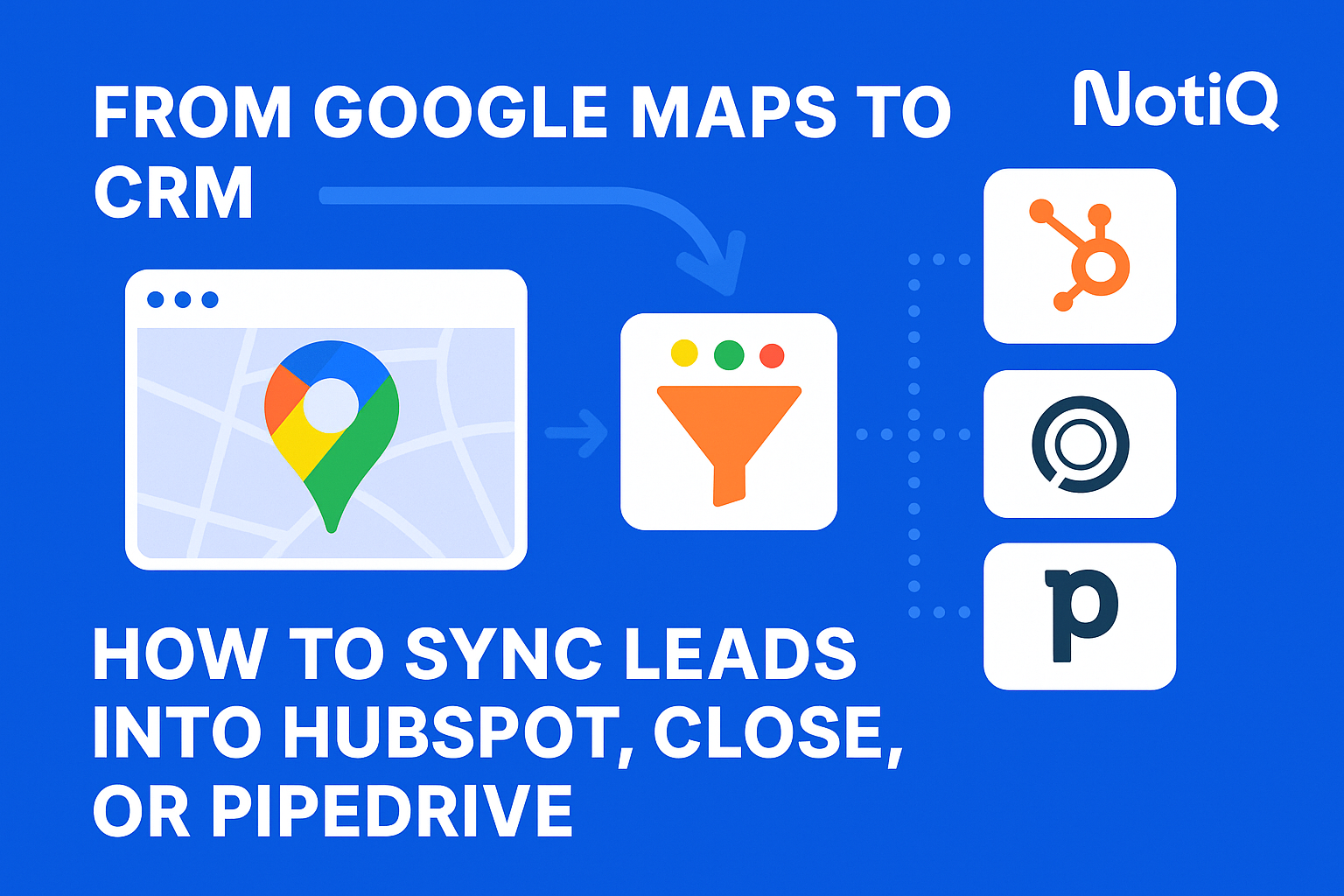
From Google Maps to CRM Sync: The Definitive Blueprint for Automated Lead Extraction and Enrichment
Table of Contents
- Introduction
- Why Google Maps to CRM Sync Is So Hard Today
- The Automation Pipeline: From Maps Extraction to Enriched CRM Lead
- Tools and Workflows That Enable a Full Maps → CRM Integration
- How to Keep CRM Data Fresh When Google Maps Listings Change
- Compliance, Data Quality, and Avoiding Common Sync Failures
- Case Studies & Real-World Automation Examples
- Tools, Resources & Next Steps
- Conclusion
- FAQ
Introduction
For local B2B sales teams, Google Maps is arguably the world’s most accurate, real-time database of business prospects. It holds millions of up-to-date listings, complete with categories, reviews, and operational hours. Yet, for most revenue operations (RevOps) professionals, getting that data into a CRM like HubSpot, Pipedrive, or Close is a nightmare of manual friction.
Sales representatives often spend hours manually copying business names, addresses, and websites into spreadsheets, only to find that the data is incomplete—missing crucial decision-maker emails or direct phone numbers. This manual "swivel-chair" data entry kills momentum and introduces human error.
The solution is not just "scraping" data; it is building an intelligent, end-to-end automation pipeline. This guide provides the definitive blueprint for transforming raw Google Maps data into enriched, validated, and synchronized CRM records. We will move beyond simple extraction to cover the entire lifecycle: enrichment, validation, intelligent routing, and continuous data freshness.
Drawing from real-world implementation experience at NotiQ, where we engineer complex Maps-to-CRM workflows, this article will show you how to turn a chaotic manual process into a compliant, automated revenue engine.
Why Google Maps to CRM Sync Is So Hard Today
The primary reason teams struggle with google maps crm sync is simple: there is no native "Connect to Salesforce" button on a Google Maps listing. Google Maps is a consumer-facing navigation product, not a B2B lead generation database. Consequently, it does not offer standard API endpoints designed for bulk lead export to CRM platforms.
This lack of maps to crm integration forces sales teams into a fragmented workflow. A typical (and painful) process looks like this:
- A rep searches for "marketing agencies in Austin."
- They manually copy the name and website.
- They switch to a tool like Hunter or Apollo to find an email.
- They switch to their CRM to paste the data.
- They repeat this process hundreds of times.
This manual approach is unscalable. It leads to inconsistent data entry—one rep might format phone numbers with country codes, while another uses local formats. Furthermore, Google Maps listings often lack direct contact information for decision-makers, meaning the data is "cold" until enriched.
While many competitors offer guides on manual copying google maps to crm, true efficiency requires removing the human from the data entry loop entirely. By leveraging workflow automation, you can bridge the gap between public map data and your sales pipeline.
The Automation Pipeline — From Maps Extraction to Enriched CRM Lead
To solve this, we must treat the process as a data pipeline, not a series of manual tasks. A successful maps to crm integration involves five distinct stages: Extraction, Enrichment, Validation, Sync, and Updates.
This pipeline ensures that only high-quality, actionable data enters your CRM, preventing the "garbage in, garbage out" problem that plagues many sales teams.
Step 1 — Automated Google Maps Listing Extraction
The first step is google maps lead extraction. While traditional scrapers rely on brittle HTML parsing that breaks whenever Google updates its interface, modern google maps lead extractor tools use AI-assisted parsing or official APIs where available to structure the data.
The goal here is to capture the "core identity" of the business:
- Business Name: The legal or trading name.
- Place ID: A unique identifier crucial for future updates.
- Address components: Street, city, zip, country.
- Category: E.g., "Dental Clinic" or "Software Company."
- Website: The primary domain for enrichment.
Step 2 — Real-Time Enrichment (Emails, Direct Phones, Decision-Maker Data)
Raw Maps data is rarely enough for a sales call. You need to know who to contact. This is where crm enrichment automation comes in.
Once the website domain is extracted from Maps, the pipeline should automatically trigger a lookup in a B2B database (like Apollo, Hunter, or specialized enrichment APIs).
- Input:
www.example-clinic.com - Enrichment Output: CEO Name, Marketing Director Email, LinkedIn Profiles, Tech Stack.
This step transforms a generic location pin into a qualified lead with multiple points of contact.
Step 3 — Validation and Deduplication Before Sync
Before any data touches your CRM, it must be validated. Inaccurate business data in crm destroys trust in your system.
A robust data validation workflow includes:
- Email Verification: Pinging the SMTP server to ensure the email is deliverable.
- Phone Formatting: Standardizing numbers to E.164 format (e.g., +15550000000).
- Deduplication: Checking if the domain or Place ID already exists in the CRM to avoid creating duplicates.
According to the Government Data Quality Framework, high-quality data must be "accurate, valid, reliable, timely, relevant, and complete." Applying these principles (read more at GOV.UK) ensures your sales team isn't wasting time on dead ends.
Step 4 — Sync to HubSpot, Pipedrive, and Close CRM
Once validated, the data is routed to your CRM. This isn't just a "dump"; it requires precise field mapping.
- HubSpot Maps Sync: Map "Place ID" to a custom property to enable future updates. Map "Industry" based on Maps categories.
- Pipedrive Location-Based Leads: Use Pipedrive’s organization address fields to enable "Leads Nearby" features on mobile.
- Close CRM Lead Import: Tag leads with "Source: Google Maps" and the extraction date for cohort analysis.
Automated routing rules can also assign the lead to the correct salesperson based on the zip code extracted from Maps.
Step 5 — Continuous Data Refresh & Update Logic
Businesses move, close, or change their hours. A static export becomes obsolete in months. Your pipeline must handle google maps listing changes.
If a business is marked as "Temporarily Closed" on Maps, your CRM should automatically flag the account or pause outreach sequences. This capability—keep crm data updated—is what separates a dynamic pipeline from a static list.
Tools and Workflows That Enable a Full Maps → CRM Integration
Building this requires a stack of tools working in harmony. Relying on a single "all-in-one" scraper often results in poor data quality because no single tool is best at extraction, enrichment, and syncing.
Workflow Orchestration with NotiQ
To unify these fragmented tools, you need an orchestration layer. NotiQ acts as the central nervous system for your google maps crm sync.
Instead of juggling CSV files between three different apps, NotiQ allows you to define triggers and actions:
- Trigger: New business detected in "Target Area" on Maps.
- Action 1: Validate website.
- Action 2: Enrich contact info via API.
- Action 3: Create/Update Deal in HubSpot.
This automated approach ensures that your crm automation workflows run 24/7 without manual intervention.
Extractor + Enrichment Tool Stack (Apollo, ScrapeStorm, etc.)
For the raw data components, a modular stack is often best:
- Extraction: Tools like ScrapeStorm google maps scraper or Apify can handle the initial data gathering.
- Enrichment: Platforms like Apollo or Clearbit excel at the apollo data enrichment workflow, providing deep contact data once the domain is known.
The orchestrator sits in the middle, passing data from the extractor to the enricher, and finally to the CRM.
CRM-Specific Workflows (HubSpot vs Pipedrive vs Close)
Different CRMs require different handling:
- HubSpot: Great for marketing automation. Trigger an email workflow immediately upon sync.
- Pipedrive: Excellent for visual pipeline management. Create a "New Lead" activity for the sales rep immediately.
- Close: Ideal for high-volume calling. Sync the direct phone number to the primary contact field to enable the Power Dialer.
Understanding these nuances ensures your hubspot maps sync or close crm lead import actually supports the sales process rather than cluttering it.
How to Keep CRM Data Fresh When Google Maps Listings Change
Data decay is the enemy of outbound sales. Data freshness is critical for maintaining high deliverability and avoiding wasted trips for field sales teams.
Automated Change Detection
Advanced pipelines use a "delta" approach. They periodically re-scan the target area and compare the new results against the existing CRM data.
- New Listing: Add to CRM.
- Changed Listing: Update the record (e.g., new phone number).
- Removed Listing: Mark as "Closed" in CRM.
The GSA Data Quality Guidelines emphasize the utility and objectivity of data, which requires regular maintenance cycles (see GSA.gov). A data monitoring workflow ensures your CRM reflects reality.
Updating CRM Records Without Breaking Workflows
When updating, you must be careful not to overwrite manual work done by sales reps.
- Rule: Never overwrite the "Owner" field.
- Rule: Only update the phone number if the field is currently empty or if the new source has higher confidence.
These crm update rules prevent automation from annoying your sales team.
Compliance, Data Quality, and Avoiding Common Sync Failures
Automation must be ethical and compliant. Just because data is public doesn't mean all uses are unrestricted.
Legal & Ethical Considerations
When extracting data, you are generally accessing public data compliance frameworks. Business names, addresses, and general office numbers published on Google Maps are public domain information.
- Do: Extract public business info to build a prospecting list.
- Don't: Scrape private personal data or violate Terms of Service by overwhelming servers (DDoS behavior).
- Consent: When emailing individuals found via enrichment, ensure you comply with GDPR (legitimate interest) or CAN-SPAM/CCPA regulations depending on your region.
Data Quality Frameworks and Standards
Adhering to standards like the Government Data Quality Framework (cited previously) ensures your data is "fit for purpose." This means defining what "good" looks like before you sync. If a record lacks a phone number and a website, does it meet your minimum standard for a CRM lead? If not, filter it out.
Common Sync Errors and How to Avoid Them
CRM sync errors often occur due to:
- Field Type Mismatch: Sending text to a number field.
- Dropdown Restrictions: Sending a category like "Software" to a CRM field that only accepts "Technology."
- API Rate Limits: Trying to sync 10,000 leads in one minute.
Avoiding Bad Data Entering Your CRM
Implement a data validation workflow as a gatekeeper.
- If
Email Status= "Bounced" or "Risky", do not sync. - If
Business Status= "Permanently Closed", do not sync.
Case Studies & Real-World Automation Examples
Agency Prospecting Workflow
A digital marketing agency wanted to target dentists in California.
- Old Way: Manual Google searches, finding 10 leads/day.
- New Way: Automated google maps crm sync pipeline.
- Extracted 5,000 dentists.
- Enriched with decision-maker emails via Apollo.
- Synced to Pipedrive with "Lead Source: Maps Automation."
- Result: 300% increase in pipeline velocity; reps focused entirely on closing.
Multi-Location Sales Ops Workflow
A beverage distributor needed to track new restaurant openings to sell their product.
- Workflow: Weekly monitoring of Google Maps for "New" listings in the "Restaurant" category.
- Action: Auto-create task in HubSpot for the territory manager to visit.
- Result: Captured 100% of new market entrants within 7 days of opening.
Tools, Resources & Next Steps
To build this yourself, you need the right stack.
- Orchestration: NotiQ (for end-to-end logic).
- Extraction: Apify or custom Python scripts.
- Enrichment: Apollo, Hunter, or Clearbit.
- CRM: HubSpot, Pipedrive, Salesforce, or Close.
For broader sales automation tools that complement this workflow, check out our partners and recommended resources.
https://repliq.co/sales-automation-software
Conclusion
The era of manual copy-pasting is over. A robust google maps crm sync is not just a convenience; it is a competitive advantage. By implementing the definitive blueprint—Extraction, Enrichment, Validation, Sync, and Refresh—you transform Google Maps from a simple navigation tool into a dynamic, always-on source of revenue.
While fragmented tools exist, true success comes from unified crm enrichment automation. Whether you are a local agency or a global enterprise, the data is there. The only question is whether you have the pipeline to handle it.
Ready to stop pasting and start selling? Explore how NotiQ can orchestrate this entire workflow for you.
FAQ
Frequently Asked Questions
How do I sync Google Maps leads into my CRM?
You sync leads by building a pipeline that extracts public data from Maps, enriches it with contact details using third-party APIs, validates the data, and then uses your CRM's API to create or update records automatically.
Can Google Maps data automatically populate HubSpot or Pipedrive?
Yes, but not natively. You must use an integration tool or workflow automation platform that sits between Google Maps and HubSpot/Pipedrive to format and transfer the data.
How do I keep CRM data updated when Google Maps listings change?
You need a "change detection" or monitoring workflow. This involves periodically re-scanning specific geographic areas or Place IDs and comparing the new data against your existing CRM records to identify updates.
Is there a tool that extracts business data from Google Maps and enriches it automatically?
Most tools specialize in either extraction or enrichment. For a fully automated process, you typically need an orchestration platform like NotiQ to connect an extractor (like ScrapeStorm) with an enrichment database (like Apollo).
What fields should I map when sending Maps leads into my CRM?
At a minimum, map the Company Name, Website, Phone Number, Full Address (Street, City, Zip, Country), Google Maps Place ID (for updates), and Business Category.
.svg)